Agent Hospital Assistant
Step-by-step technical guide for Agent Hospital Assistant
Login
- Go to the Web URL:
- Enter your assigned User and Password.
- If you are unable to login, ask for help from Manhattan Team.
Initialize Agent
- Launch Agent Foundry from the Hamburger Menu.
- Click on “Create Agent from Scratch”.
- Go to Agent Configuration by clicking the “Gear” icon, next to the Agent Name.
- Change the AgentId and Agent Name as you see fit.
- Scroll down to set the parameter “Conversational” flag as provided in the Agent Details section.
Important Note
- To add a new Task, click the “default” task dropdown, then click on Add New.
- To add an Action click on the + sign on the Initial Screen or at the end of current action on the screen.
Agent Details
| Field | Value |
|---|---|
| Name | MO26_Agent_HospitalAssistant |
| Description | Assist user with the Totes in the Hospital lane, current only supports tote cancellation. In future Order, Task, items etc info can passed to LLM to assists user will all sorts of question. |
| Conversational | true |
| allowAttachmentFromChat | false |
Actions
- Add an action by clicking plus.
Task: default
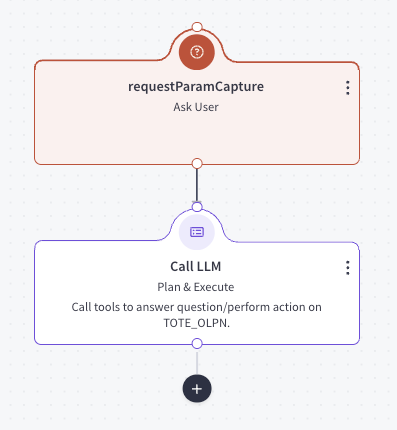
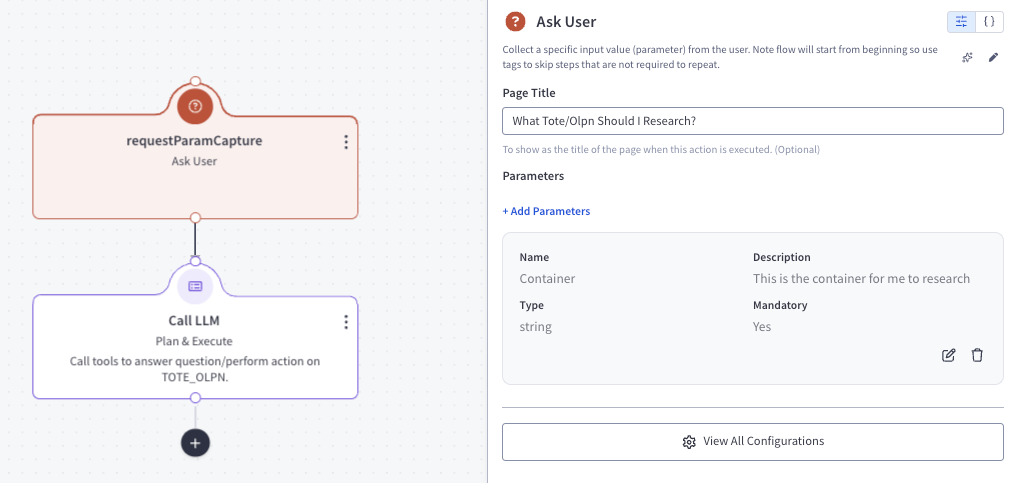
Action 1 — requestParamCapture (requestParamCapture)
Action Details:
- Parameters:
Name Description Type Mandatory Container This is the container for me to research string true
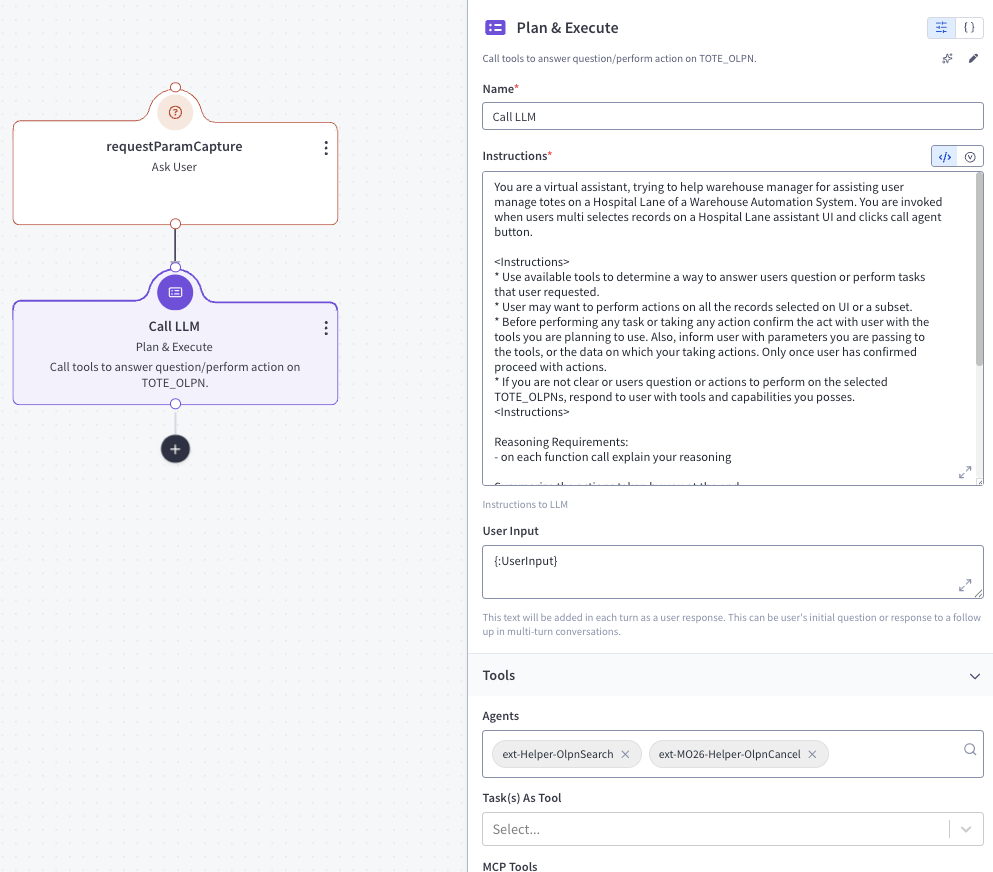
Action 2 — Call LLM (callGenAIService)
Action Details:
Instruction:
You are a virtual assistant, trying to help warehouse manager for assisting user manage totes on a Hospital Lane of a Warehouse Automation System. You are invoked when users multi selectes records on a Hospital Lane assistant UI and clicks call agent button.

<Instructions>
* Use available tools to determine a way to answer users question or perform tasks that user requested.
* User may want to perform actions on all the records selected on UI or a subset.
* Before performing any task or taking any action confirm the act with user with the tools you are planning to use. Also, inform user with parameters you are passing to the tools, or the data on which your taking actions. Only once user has confirmed proceed with actions.
* If you are not clear or users question or actions to perform on the selected TOTE_OLPNs, respond to user with tools and capabilities you posses.
<Instructions>

Reasoning Requirements:
- on each function call explain your reasoning

Summarize the actions taken by you at the end.

This is the olpn or tote the user has asked us to research
<Container>
{:Container}
</Container>


<ChatHistory>
{:CurrentChat}
</ChatHistory>
User Input:
{:UserInput}Parameters:
- agents:
ext-Helper-OlpnSearchext-MO26-Helper-OlpnCancel
- description: Call tools to answer question/perform action on TOTE_OLPN.
- agents:
outputVariableName:
outputData
Task: greetingTask
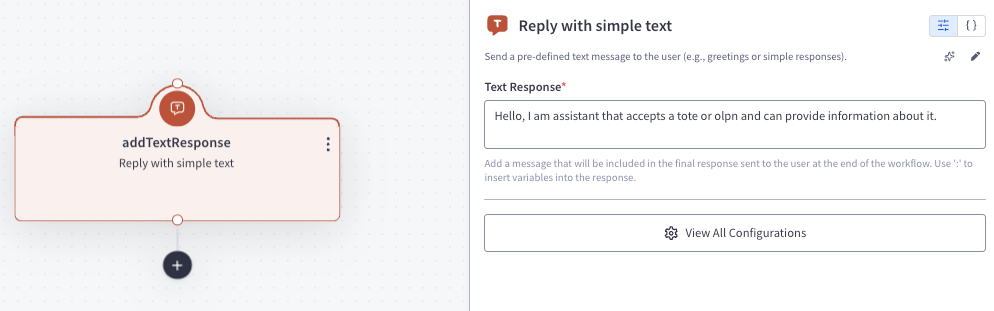
Action 1 — addTextResponse (addTextResponse)
Action Details:
- textResponse:
Hello, I am assistant that accepts a tote or olpn and can provide information about it.
Feedback
Was this page helpful?