Agent Fraud Detection
Step-by-step technical guide for Agent Fraud Detection
Login
- Go to the Web URL:
- Enter your assigned User and Password.
- If you are unable to login, ask for help from Manhattan Team.
Initialize Agent
- Launch Agent Foundry from the Hamburger Menu.
- Click on “Create Agent from Scratch”.
- Go to Agent Configuration by clicking the “Gear” icon, next to the Agent Name.
- Change the Agent Name as you see fit.
- Scroll down to set the parameter “Conversational” flag as provided in the Agent Details section.
Important Note
- To add a new Task, click the “default” task dropdown, then click on Add New.
- To add an Action click on the + sign on the Initial Screen or at the end of current action on the screen.
- Follow the Actions section and Screenshots to add action provided for each action.
Agent Details
| Field | Value |
|---|---|
| Name | MO26_Agent_FraudDetection |
| Description | This agent loads information from a ticket and uses that to evaluate an order for fraud. It then updates a ticket or updates an order to on hold. |
| Conversational | false |
| allowAttachmentFromChat | false |
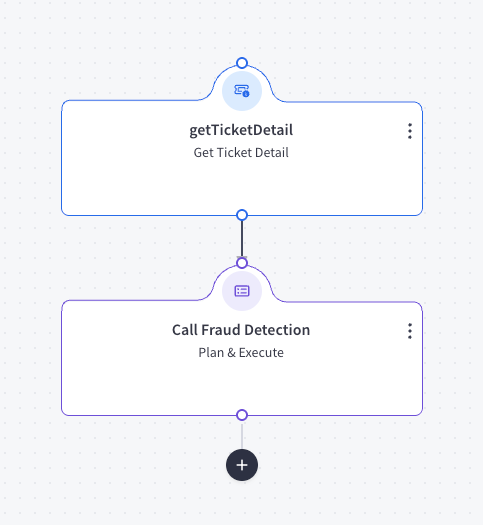
Actions
- Add an action by clicking plus.
Task: default
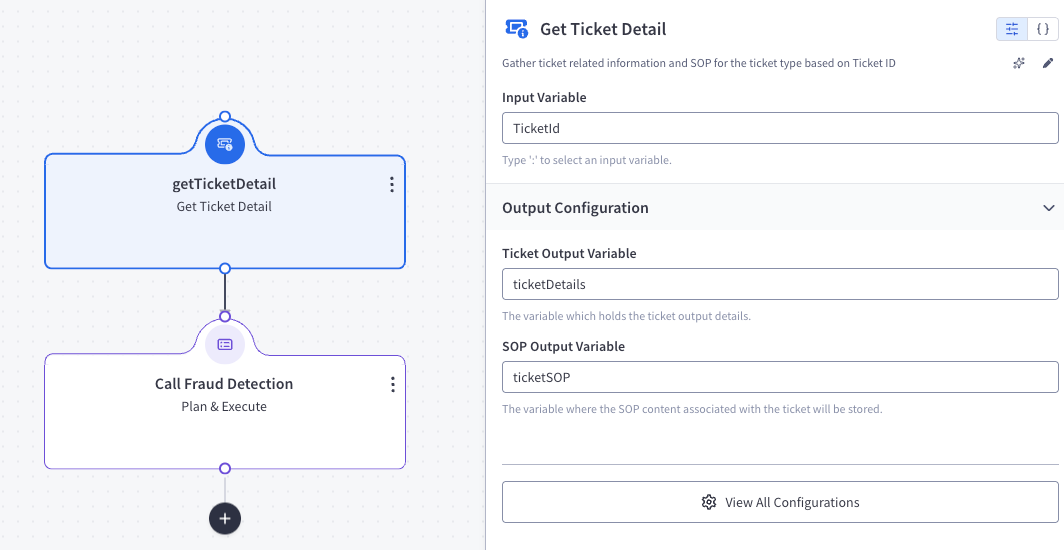
Action 1 — getTicketDetail
- Type:
getTicketDetail
Action Details:
- Input Variable:
TicketId - Output Variable:
ticketDetails - SOP Output Variable:
ticketSOP
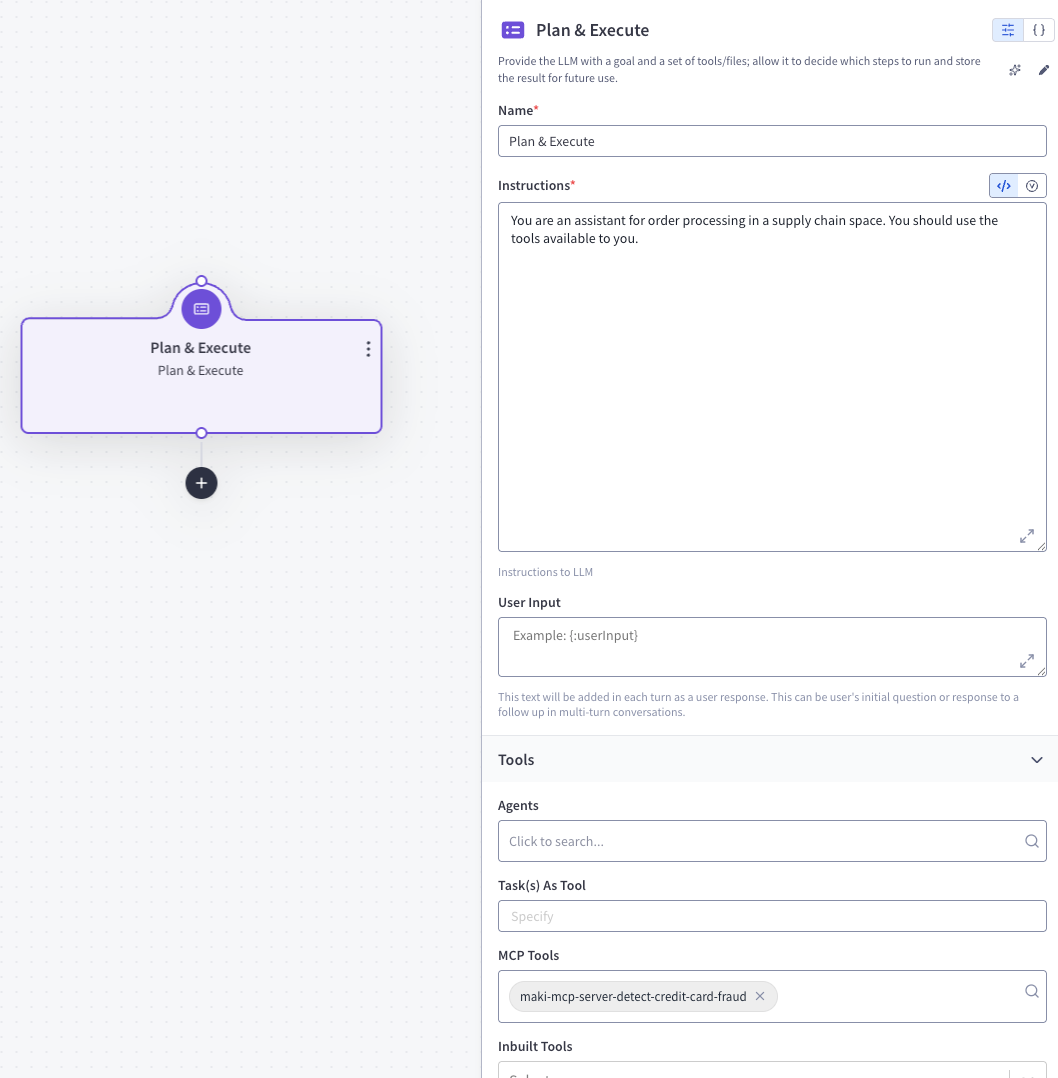
Action 2 — Call Fraud Detection
- Type:
callGenAIService
Action Details:
Instruction:
Call the credit card fraud detection tool by passing the card number as credit card number and card holder name. Capture the tool response and show it.
After getting the fraud response, update the ticket to track what you've done.

Credit Card Number and Card holder Name will be in
<TicketDetails>
{:ticketDetails}
</TicketDetails>

A unique SOP will be provided here
<SOP>
{:SOPDetails}
</SOP>
Parameters:
- MCP tools:
maki-mcp-server-detect-credit-card-fraud
- MCP tools:
Feedback
Was this page helpful?